Tree view for the current drive only
The tree view therefore had to be redesigned to display the hierarchy correctly. Unlike in previous versions, the top element in the tree view is now the desktop, as in Explorer, and no longer the respective drive.
SpeedCommander 14 and newer
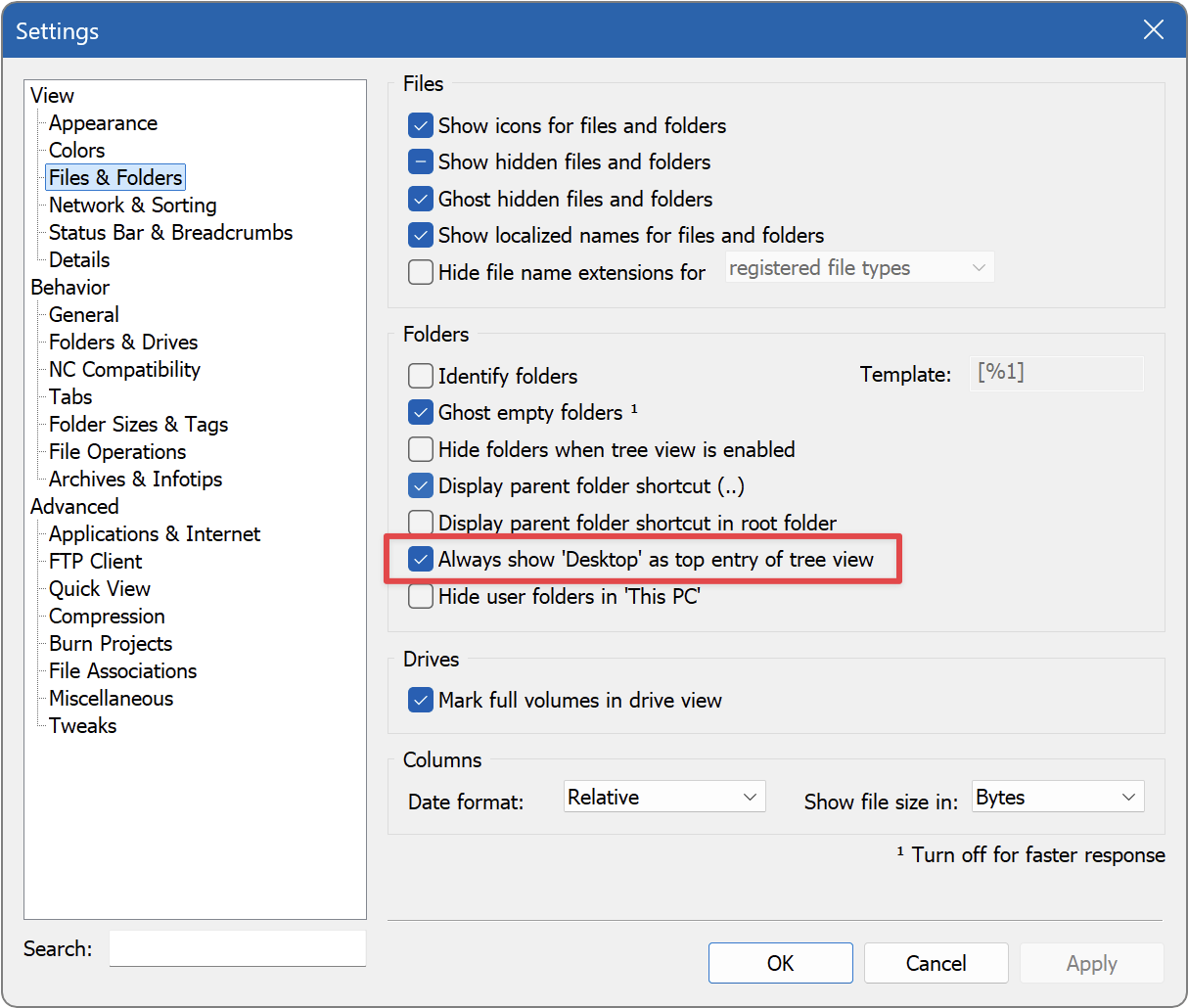
Starting with SpeedCommander 14, the old view can be restored in the settings dialog on the View – Files & Folders page. Here, uncheck the box Always show ‘Desktop’ as the top entry of tree view.
SpeedCommander 13
Please create a file named SpeedCommander.ini in the settings directory of SpeedCommander 13. Then open this file with an editor and insert the following lines:
[General]
ShellNameSpace=0
After saving the file, SpeedCommander must be restarted. Please note that this change also means that you will no longer be able to access the desktop or drives without a drive letter.