How can I start SpeedCommander with a fresh configuration?
First, right-click on the SpeedCommander program icon on the desktop and select Copy. Then right-click again on a free space on the desktop background and select Paste. You now have two program icons for SpeedCommander on the desktop.
Right-click on the second (new) program icon and select Properties. Then add the text /xml:D:\test\test.xml to the Target input field, as shown in the following image:
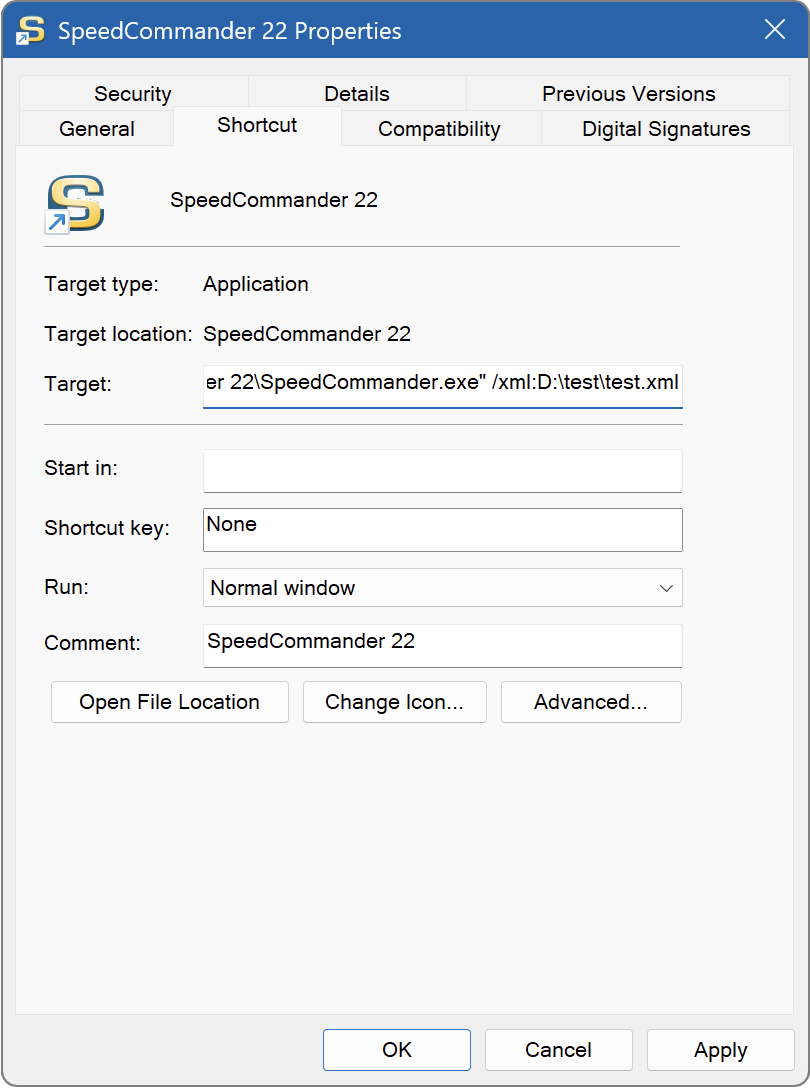
Close the dialog box with OK. Double-click on the second (new) program icon to start SpeedCommander with the new settings. The settings are saved in the folder D:\Test. If you are asked to transfer settings from an older version when starting the program, select No.
If the problem no longer occurs, the settings files are probably corrupted. Close all SpeedCommander applications and delete the files in the settings directory using Explorer. The temporary program shortcut can also be deleted.
SpeedCommander will then restart with fresh settings and can be reconfigured.