Disabling shell extensions with ShellExView
Some software providers only test their extensions with Explorer, so problems with alternative file managers go unnoticed.
With the help of the program ShellExView by Nir Sofer, shell extensions can be easily disabled. However, this only affects integration with Explorer or other file managers; the applications themselves continue to function.
Download ShellExView, unzip the ZIP archive, and start the program. Be sure to download the version that is compatible with SpeedCommander (64-bit or 32-bit).
After launching, ShellExView appears as follows:
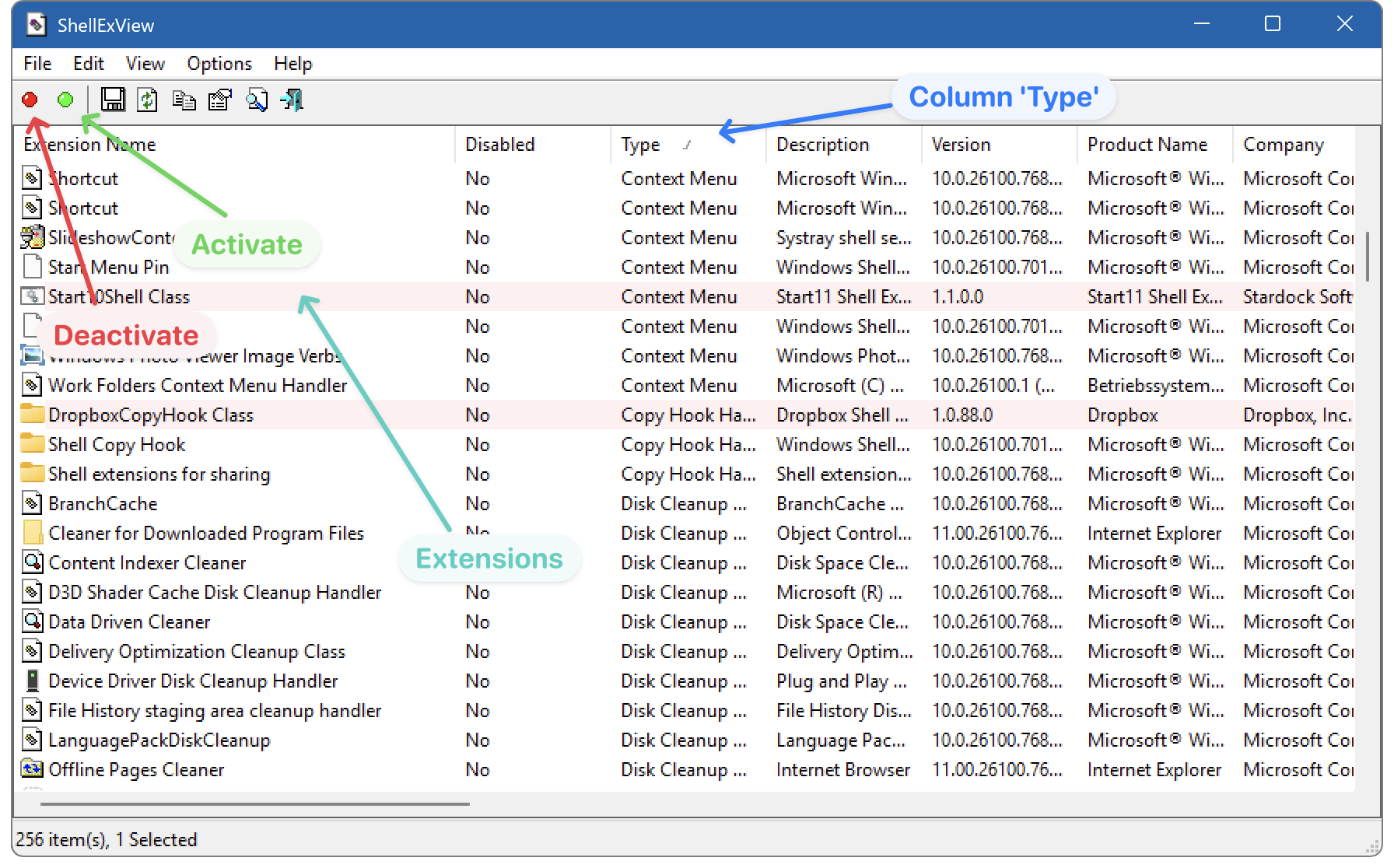
Shell extensions that do not originate from Microsoft are highlighted. You can usually focus on these highlighted extensions. Sorting by Type sorts the shell extensions by type. The entries have the following meanings:
| Extension type | Meaning |
|---|---|
| Column Handler | Additional column in the detail view |
| Context Menu | Entry in the context menu of the right mouse button |
| Drag & Drop Handler | Entry in the context menu when dragging with the right mouse button |
| Drop Handler | Drop data onto specific file types |
| Icon Handler | Dynamic icon for specific file types |
| InfoTip Handler | InfoTip for specific file types |
| Property Sheet | Additional page in the Properties dialog |
| Thumbnail | Thumbnail for specific file types |
Now select the extensions in question and click on the icon with the red dot to deactivate the extensions. The Disabled column shows whether the extension is disabled (Yes) or enabled (No). Then restart SpeedCommander and check whether the problems still occur. If not, you can reactivate the extensions one by one by clicking on the icon with the green dot. SpeedCommander should always be restarted after activating or deactivating an extension.