Creating a WebDAV connection
SpeedCommander 17 und neuer
With the Pro version of SpeedCommander 17 and newer, you can access WebDAV connections directly without any additional programs.
- Select the drive icon 4 in the drive bar to display the AddIn overview.
- Right-click in the free area of the AddIn overview and select the command New | Cloud Site from the context menu.
- In the New Site combo box, select your service provider (1&1, GMX, MagentaCLOUD) or WebDAV for all other providers.
- Enter the name for the connection as well as the user name and password. If you select WebDAV, you must also specify the respective server address.
- After clicking OK, you can establish the connection by double-clicking.
SpeedCommander 16 and older
The media centers offered by 1&1 or GMX, for example, generally use the WebDAV protocol. To access WebDAV resources, you can use the Map Network Drive function from the Disk menu. After selecting the menu command, the following dialog box appears:
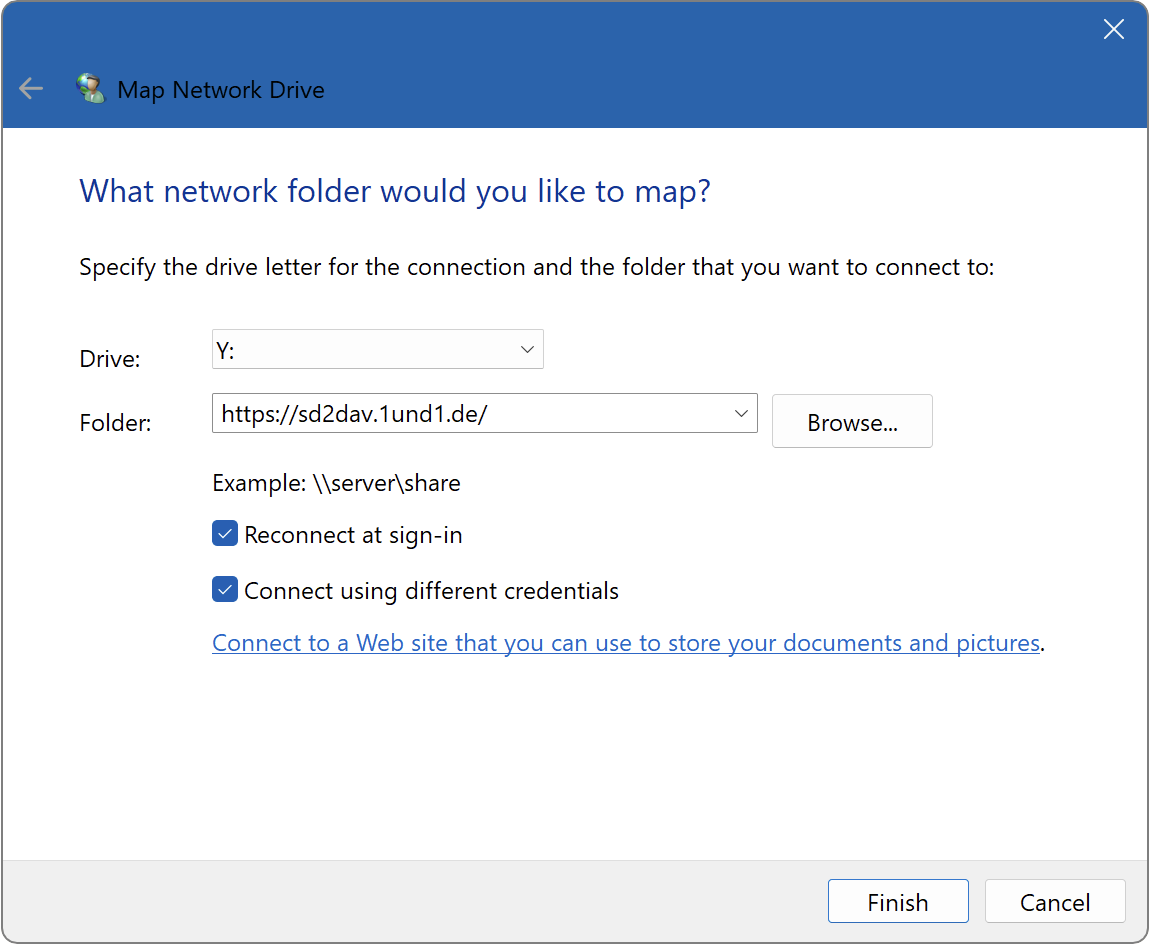
First, select an available drive letter and enter the address for the corresponding media center. Activate the Reconnect at sign-in option if you want the network drive to be automatically mounted each time Windows starts. Important in connection with accessing WebDAV resources is the option Connect with different credentials, which must be activated in order to enter the access data for the corresponding media center. After you have confirmed the information via Finish, the dialog box for entering the login credentials will appear after a short time:
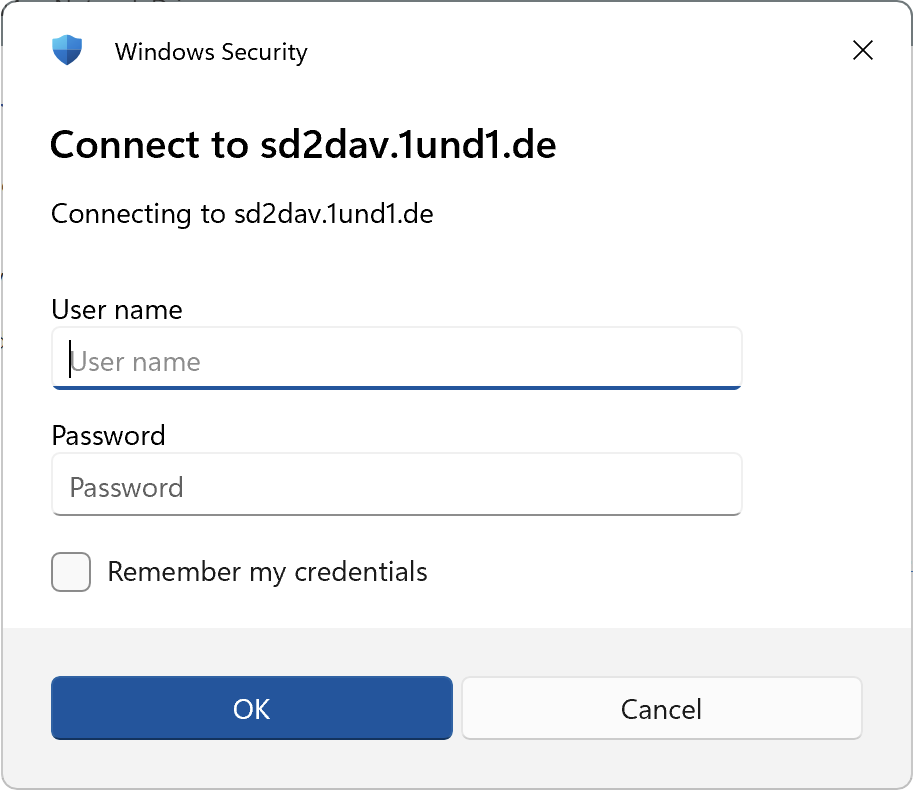
Enter the relevant login information here and confirm your entries with OK. The setup of the media center varies depending on the provider.
Setting up access to the 1&1 media center
- In the 1&1 Control Center, first set up a service password and assign it to an email address. You may have to wait a little while for the setup to complete.
- Then activate the Media Center in the 1&1 Control Center and assign it to an email address.
- The address for the Media Center is https://sd2dav.1und1.de/.
- The username is the email address assigned to the Media Center.
- The password is the service password you set up.
Once you have entered the relevant data, you will be able to access the 1&1 Media Center. In SpeedCommander itself, you can then access it as usual via a drive letter.
Setting up access to the GMX Media Center
- The address for the Media Center is https://webdav.mc.gmx.net/.
- The user name is your email address or customer number.
- The password is the GMX password.
The setup is the same as for 1&1.