Show hidden files
The display of hidden files can be customized in the settings dialog on the View – Files & Folders page. The settings dialog can be accessed via the Settings command in the Extras menu:
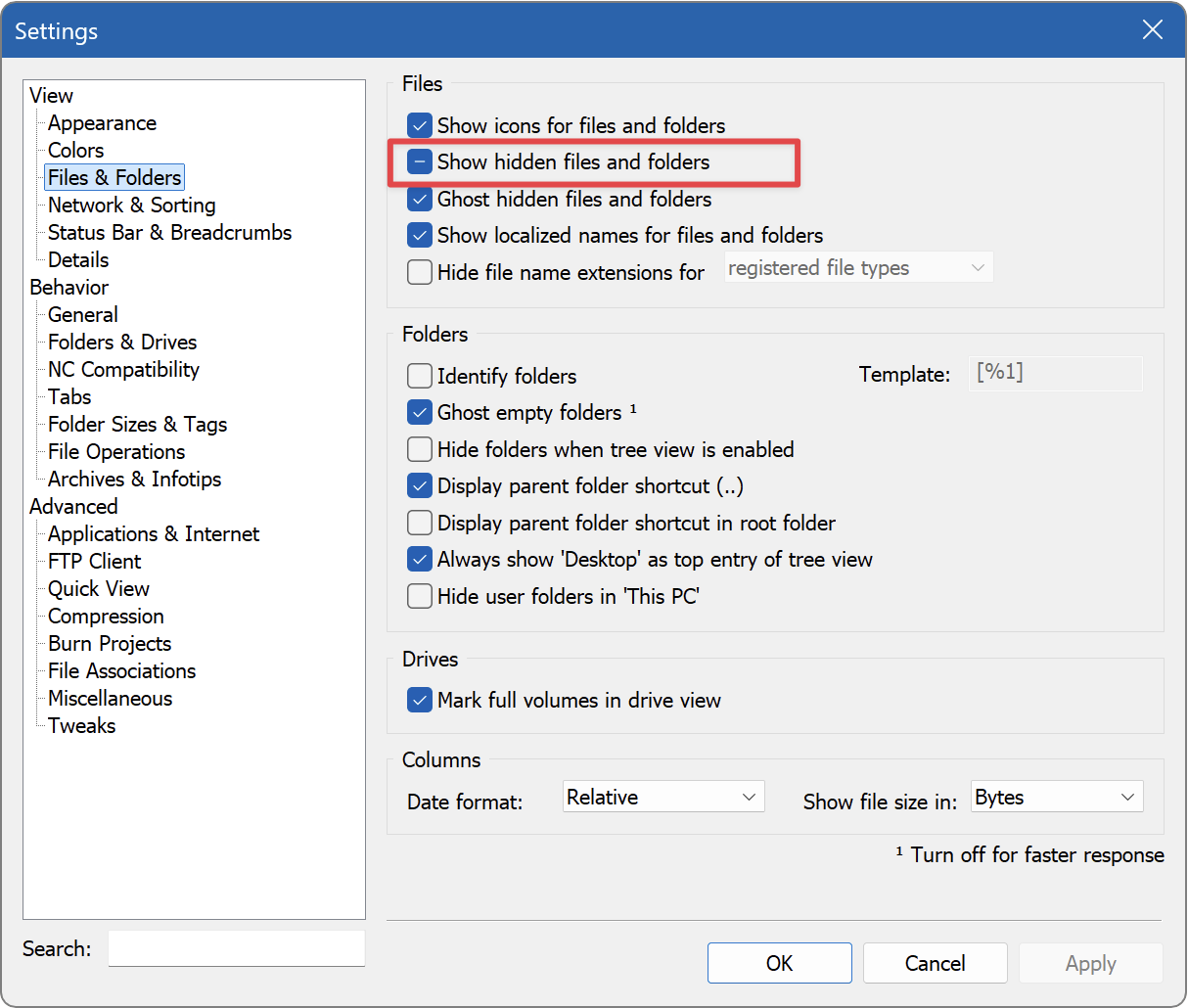
The Show hidden files and folders setting has three states:
 Hidden files and folders as well as protected system files are hidden.
 Hidden files and folders are displayed, protected system files are hidden.
 Hidden files and folders as well as protected system files are displayed.
Activate the desired setting and click Apply.
Alternatively, you can also toggle the display of hidden files using a button in the toolbar. To do this, open the Customize dialog box via the menu command Extras – Customize and select the Commands tab:
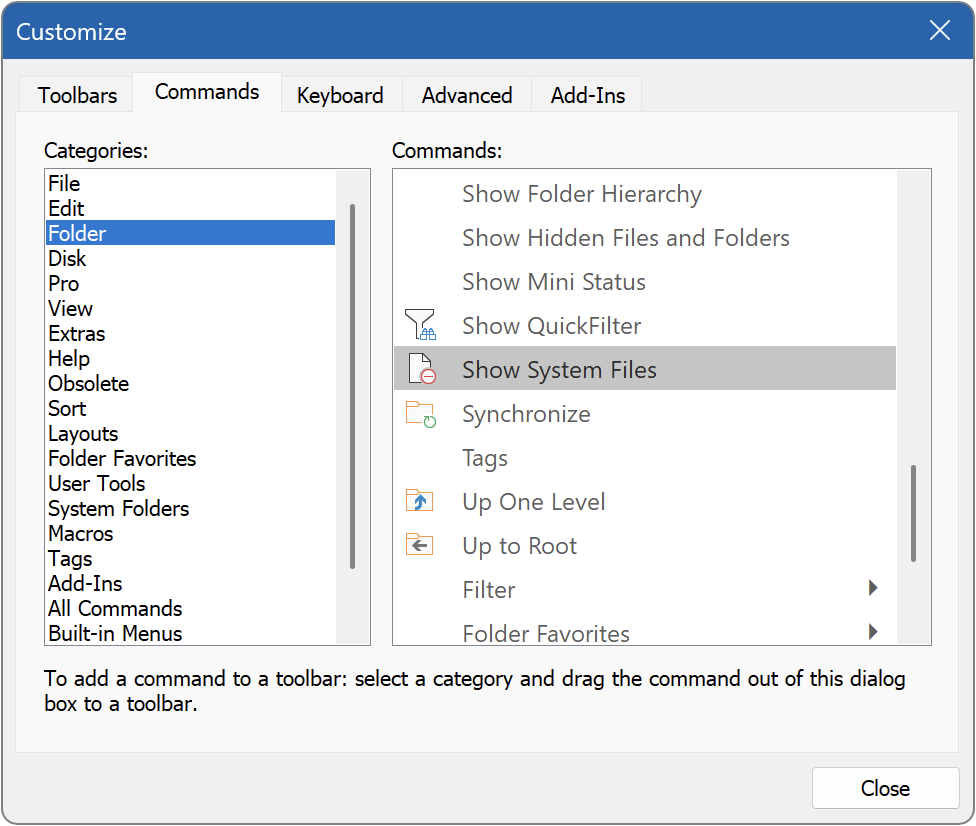
In the Folder category, you will find the Show System Files command. Now drag this command to the desired position on a toolbar or in the menu.